Manual Revision
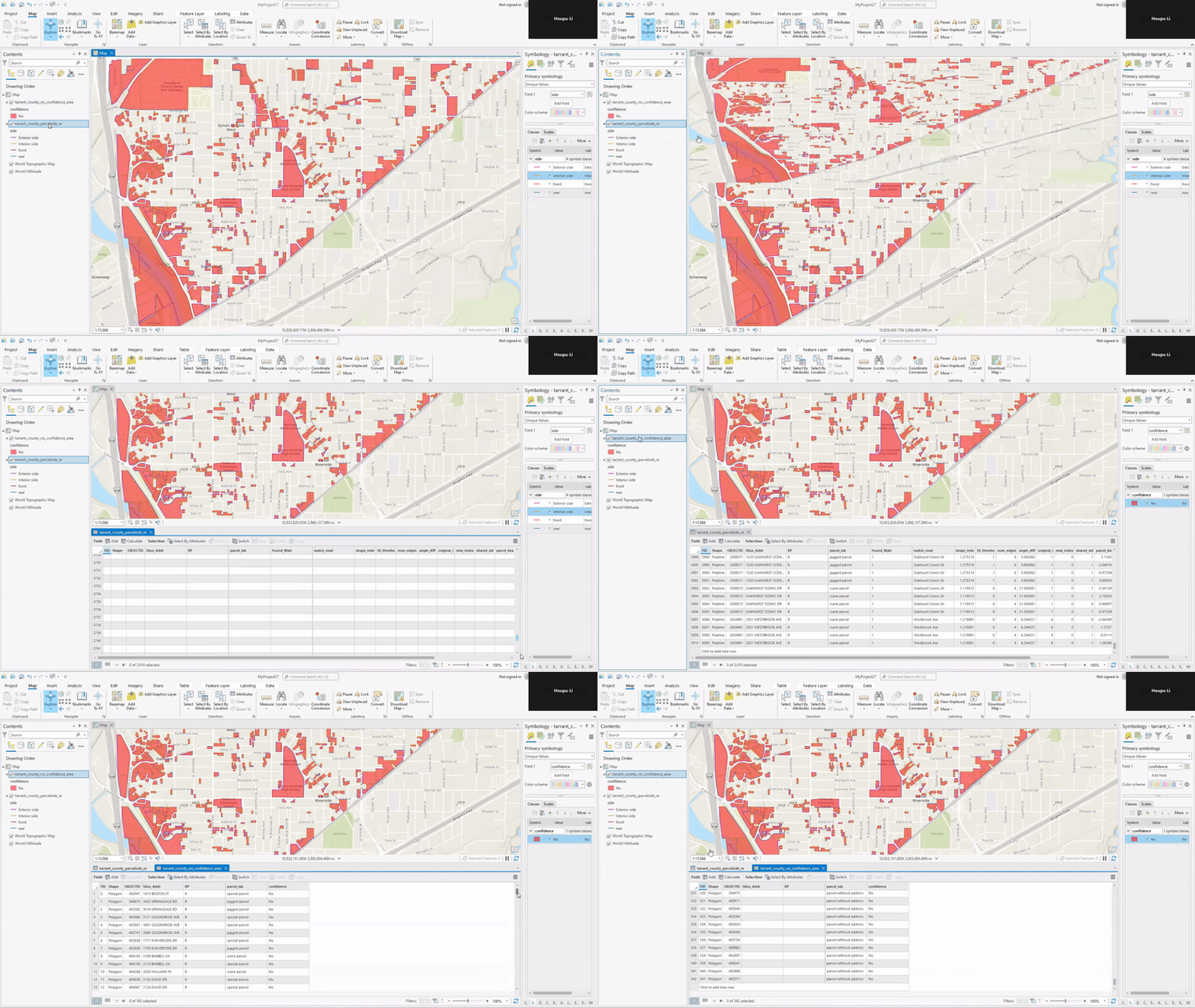
Open the Attritute Table in ArcGIS / QGIS
This step guides you on how to access the attribute table to view and edit feature attributes.
1. ArcGIS
- Right-click the layer name in the Table of Contents.
- Select Open Attribute Table.
- The table will display all the attributes and fields related to each feature in the selected layer, showing information such as “OBJECTID”, “Situs_Addr”, “RP”, “parcel_labeled”, “side”, “geometry”.
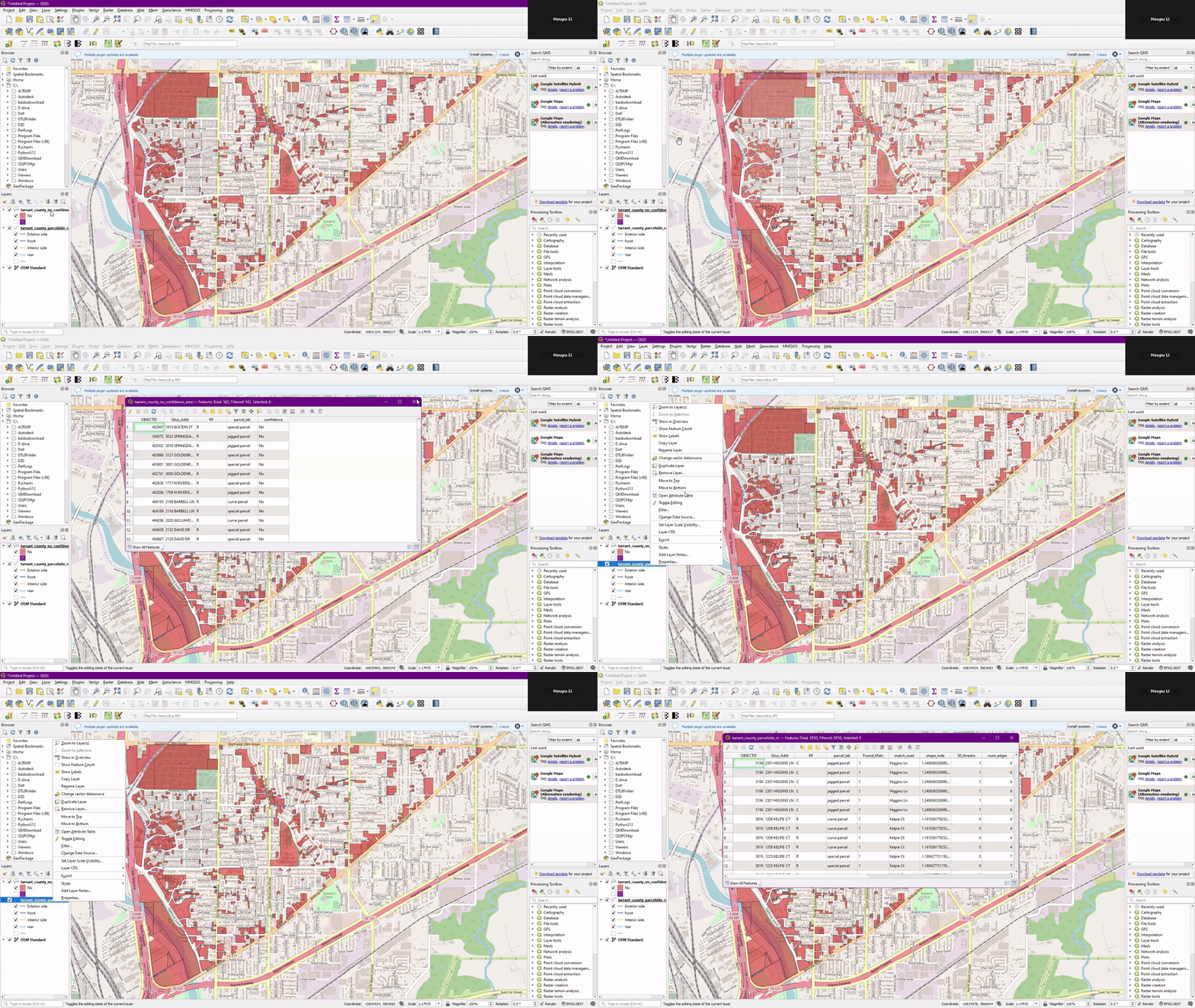
2. QGIS
- Right-click the layer name in the Layers panel.
- Select Attribute Table.
- The table will display all the attributes and fields related to each feature in the selected layer, showing information such as “OBJECTID”, “Situs_Addr”, “RP”, “parcel_labeled”, “side”, “geometry”.
Change Parcel Edge Identification Shapefile
Use this step to manually correct and update parcel edge classifications to ensure accurate identification.
1. Edit Attributes
- Open the attribute table and identify the
sidecolumn. - Update the values to correctly reflect the desired changes (e.g., marking certain edges as “front”, “Exterior side”, “Interior side”, or “rear”).
2. Edit Geometry
- Use editing tools like “Split/Join Linestring” to modify geometries if needed.
- Save the edits to preserve the changes made.
Change Confident Area Shapefile
After adjusting the edges, modify the confident area shapefile to indicate which parts have been successfully updated for better visualization and tracking.
Edit Attributes
- Open the attribute table and identify the
confidencecolumn.
- Update
NointoYes.
Review the Complete Steps
Note
- Watch Vedio: How to make manual revisions